If you’re an iPhone user looking to capture what’s on your screen, this guide is for you. iPhones come with a built-in screenshot feature that makes the process incredibly simple. Just press the buttons indicated below to easily take a screenshot whenever you need one.
Capture Screenshot on Face ID iPhones
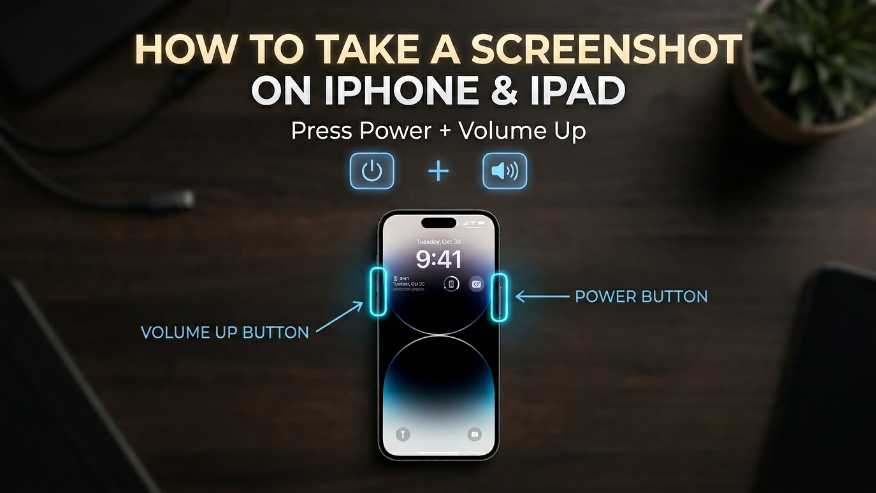
How to take a screenshot on iPhone models with Face ID
If you are using any iPhone X, 11, 12, 13, 14, 15, or 16 series model without a Home button, follow these steps to take a screenshot:
- First, press the Side button and the Volume Up button at the same time.
- Quickly release both buttons.
- You will see a camera flash on your screen, and a thumbnail of the screenshot will appear in the bottom corner.
How to take a screenshot on iPhone models with a Home button
If you are using an iPhone 8, iPhone SE (2nd/3rd Gen), or an older model that features a Home button, you can follow these steps to take a screenshot.
- Press the Side button and the Home button at the same time.
- Immediately release both buttons.
- Your screenshot will then be captured and saved to your phone.
How to take a screenshot using Back Tap
If you are using iOS 14 or later, you can take advantage of the Back Tap feature to easily capture your screen. To set this up, follow these steps:
- First, open the Settings on your iPhone.
- Tap on Accessibility.
- Select the Touch option.
- Scroll down to the bottom and tap on Back Tap.
- Finally, choose either Double Tap or Triple Tap and select Screenshot to enable it.
Once you complete these steps, the Back Tap feature will be enabled. From now on, whenever you double-tap the back of your phone, a screenshot of your screen will be captured automatically.
How to take a screenshot using AssistiveTouch
If your physical buttons aren’t working, you can use AssistiveTouch to take a screenshot. Just follow these steps:
- First, open the Settings on your phone.
- Next, tap on Accessibility.
- You will see the Touch option; tap on it.
- From there, enable the AssistiveTouch feature.
- Now, go to Customize Top Level Menu.
- Replace any existing icon with the Screenshot option.
- A floating circular button will now appear on your screen; simply tap it to capture your screenshot.
How to take a full-page screenshot
If you want to capture a full-page screenshot of a webpage or a PDF, you can do so by following these simple steps:
- First, take a screenshot using your usual method.
- Next, tap on the thumbnail that appears in the corner.
- You will see two options: “Screen” and “Full Page.” Select “Full Page.”
- The entire page will then be captured and saved to your phone.
How to edit a screenshot
If you want to edit your screenshot, the iPhone offers a built-in editing feature that makes it easy. Just follow these steps:
- Markup Tool – After taking a screenshot, tap the thumbnail to access the Markup tools. You can use these to highlight specific areas, add arrows, or use various pens and pencils to draw on your screenshot.
- Crop – This tool allows you to drag the corners or edges of the screenshot to resize it and remove any unnecessary parts of the image.
- Save – Once you have finished editing, tap Done and select the option to save the screenshot to your phone.
Note – After taking a screenshot, if you swipe the thumbnail to the left side, the screenshot will automatically be saved to your Photos App or Album. This is very useful when you want to take multiple screenshots quickly without the thumbnail staying on your screen.
| Action | Shortcut / Method |
|---|---|
| Face ID Models (X, 11, 12, 13, 14, 15, 16) | Side Button + Volume Up |
| Home Button Models (8, SE, Older) | Side Button + Home Button |
| Back Tap (Customizable) | Double or Triple Tap (Back of Phone) |
| AssistiveTouch (On-Screen Menu) | Floating Button > Screenshot |
| Full Page Capture | Tap Thumbnail > Full Page Option |
| Quick Save (Dismiss Thumbnail) | Swipe Thumbnail to the Left |
- How to Screenshot on Mac
- How to Screenshot on Android
- How to Screenshot on Window
- How to Screenshot on Chromebook
- How to Screenshot on Android Linux
The fastest way is to simultaneously press and release the Side Button and the Volume Up button. This works for all models from iPhone X through the latest iPhone 16 series.
Yes! You can use the Back Tap feature (Settings > Accessibility > Touch > Back Tap) or enable AssistiveTouch to create an on-screen shortcut. Both methods allow you to capture your screen with a simple tap.
Take a regular screenshot, tap the thumbnail in the bottom-left corner, and select the “Full Page” tab at the top of the editing screen. Note that this feature primarily works in Safari and for PDF documents.
By default, all screenshots are saved in the Photos app. You can find them quickly by going to Albums and scrolling down to the “Screenshots” media type folder.
Immediately after taking a screenshot, tap the thumbnail to open the Markup Tool. Here, you can use pens, highlighters, or even add shapes like arrows and circles to point out important details.