Nowadays, most people use Android smartphones. There are many situations where you might need to capture what’s on your screen, but not everyone knows the exact steps to do it. If you’re looking to take a screenshot on any Android device, simply follow the methods outlined below.
Capture Screenshot on Android
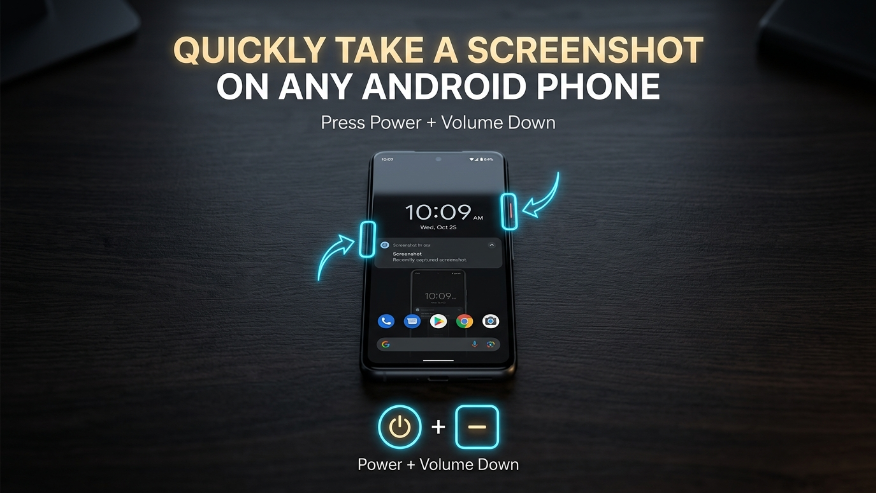
Using Physical Buttons to Capture Your Screen
If you prefer using hardware buttons, here is the breakdown of how to trigger a screenshot based on your device’s age and model:
- Mastering the Timing: To ensure the command registers, you must press both buttons exactly at the same time. Hold them down firmly for about 2 to 3 seconds. You will usually see a visual flash on the screen or hear a shutter sound confirming the capture was successful.
- For Modern Android Devices: On almost all recent smartphones, simply press and hold the Power and Volume Down buttons at the same time. This is the universal standard for current Android versions.
- For Older Models: If you are using an older device, the combination might be slightly different. In these cases, try pressing the Power and Volume Up buttons simultaneously.
Manufacturer-Specific Shortcuts
Every manufacturer uses different shortcuts for taking screenshots. To help you out, we’ve listed various Android-specific shortcuts so you can easily capture your screen regardless of the device you own.
- Samsung: Swipe your palm across the screen to capture a screenshot.
- Google Pixel: Lightly double-tap the back of the phone near the Google logo.
- Redmi: Swipe down on the screen using three fingers.
- OnePlus/Oppo: Touch and hold three fingers on the screen.
- Motorola: Touch and hold three fingers on the screen for a few seconds.
- All Android: Press the Power and Volume Down buttons simultaneously.
Scrolling & Partial Screenshots
If you need to capture an entire webpage, a digital ticket, or just a specific portion of your screen, it is essential to know how to use Scrolling and Partial screenshots.
- Scrolling Screenshots: When you take a screenshot, a “Capture More” or “Scroll” option will appear at the bottom of the screen. Tap it to select the entire webpage or the specific length you need. This allows you to create a long, vertical screenshot similar to a PDF.
- Partial Screenshots: If you are using Android 12 or a newer version, you have the option to select a specific area immediately after capturing the screen. This feature allows you to crop and save only the relevant part of the image.
Screenshot vs Screen Recording
People often get confused between screenshots and screen recordings. Here are the key differences to help you understand the distinction between the two:
- Screenshot: This allows you to capture a still image of your screen, typically saved in high-quality JPG or PNG formats.
- Screen Recording: This is used to capture live action on your display. It creates a video of your screen activity, usually saved in MP4 format
Understanding “Screenshot Not Allowed”
You may have noticed that some applications trigger a “Screenshot Not Allowed” error when you try to capture the screen. This restriction is implemented for security and privacy reasons. Here are the most common scenarios where this happens:
- Banking Apps: To ensure high-level security, most banking and UPI applications restrict screenshots to prevent sensitive financial data from being leaked.
- Incognito Mode: If you are using Incognito Mode in Chrome or other browsers, screenshots are disabled by default to maintain your browsing privacy.
- DRM Content: Streaming services like Netflix, Disney+, and JioHotstar restrict screenshots to protect copyrighted material and prevent digital piracy.
If you encounter this error in these specific apps, you will be unable to capture the screen through standard methods.
Note: If you are having trouble taking a screenshot in other apps, check if your phone’s storage is full or if your physical buttons are malfunctioning, as these can also prevent you from capturing images.
Where are Screenshots Saved?
When you take a screenshot on your phone, it is automatically saved to a dedicated “Screenshots” folder within your File Manager. You can easily view your captures by opening your Gallery or Photos app and looking for the Screenshots album. Additionally, if you have backup enabled, you can access all your screenshots through Google Photos from any device.
Best Apps for Screenshot Editing
If you want to edit your screenshots, several specialized apps offer advanced features to help you customize your captures. Here are the top tools you can use:
- Google Lens: This tool allows you to extract and copy any text directly from your screenshot.
- Screen Master: A versatile editor that lets you highlight specific areas, add text, and use tools like arrows, shapes, and blurring for better clarity.
- Google Photos: Use this to back up your screenshots to the cloud, ensuring your phone’s internal storage remains free.
These are the most effective ways to manage and edit screenshots on an Android device.
- How to Screenshot on Mac
- How to Screenshot on Window
- How to Screenshot on iPhone
- How to Screenshot on Chromebook
- How to Screenshot on Android Linux
This is due to high-level security and privacy protocols. Banking apps restrict screenshots to protect your financial data, while streaming services like Netflix and Disney+ use DRM (Digital Rights Management) to prevent unauthorized distribution of copyrighted content.
After taking a standard screenshot, look for the “Capture More” or “Scroll” button in the preview toolbar at the bottom of the screen. Tap it to extend the capture area vertically until you have saved the full length of the page.
By default, screenshots are saved in a dedicated folder. You can find them by opening your Photos or Gallery app and navigating to the Library or Albums section, then selecting the “Screenshots” folder.
Yes! You can use gesture-based shortcuts (like the three-finger swipe), the “Screenshot” button in the Quick Settings notification panel, or enable the “Accessibility Menu” in your settings to use an on-screen shortcut.
The easiest way is to use Google Lens. Open the screenshot in Google Photos, tap the “Lens” icon, and select “Text.” From there, you can copy, translate, or search for the text found within the image.