If you want to take a full-page screenshot in Google Chrome, this article is going to be incredibly useful for you. In this guide, we will share several different methods to capture a full-page screenshot in Google Chrome, allowing you to easily save any webpage.
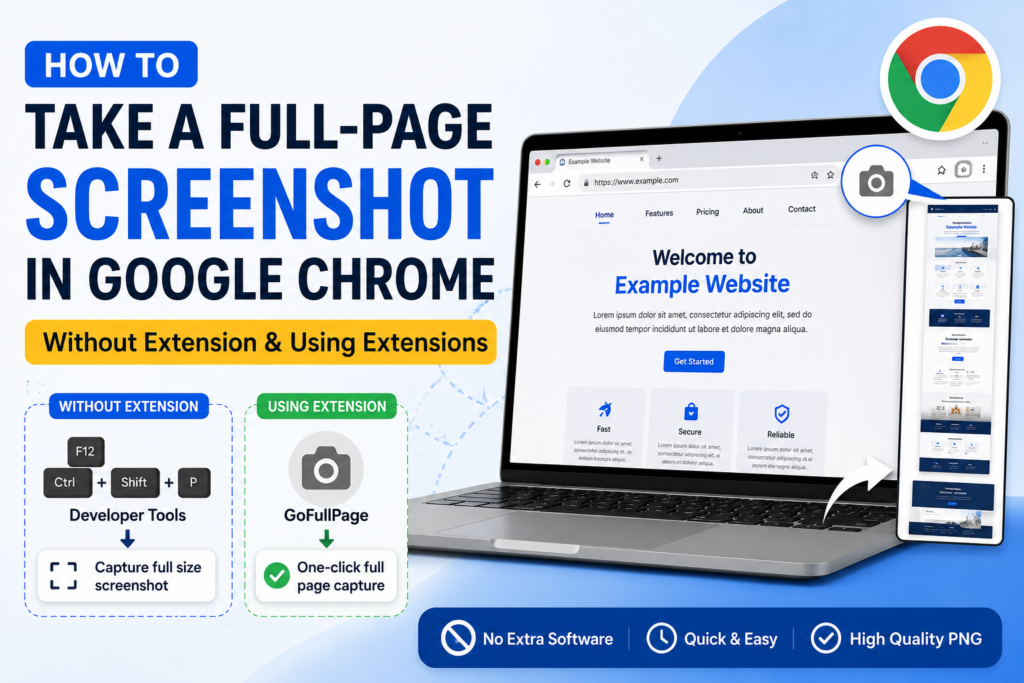
How to Take a Chrome Full-Page Screenshot Without an Extension
If you want to capture a screenshot of an entire webpage in Google Chrome without installing any third-party applications or extensions, you can use the built-in Native Developer Tools. Chrome includes a feature that lets you capture full-page screenshots directly. To take a screenshot using Native Developer Tools, follow these steps:
Step 1. First, open the Google Chrome application. Next, press F12 or Ctrl + Shift + I on your keyboard. This will open a side panel on your screen.
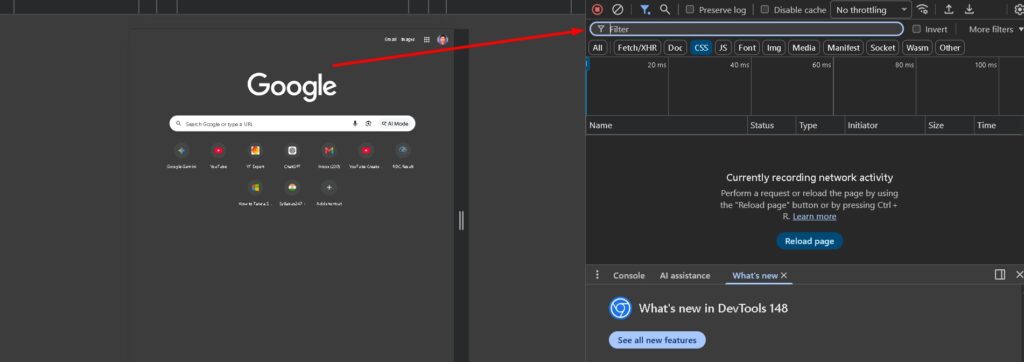
Step 2. Once the side panel opens in Google Chrome, press Ctrl + Shift + P to open the command menu. Type Screenshot into the search box that appears, select Capture full size screenshot, and press Enter.
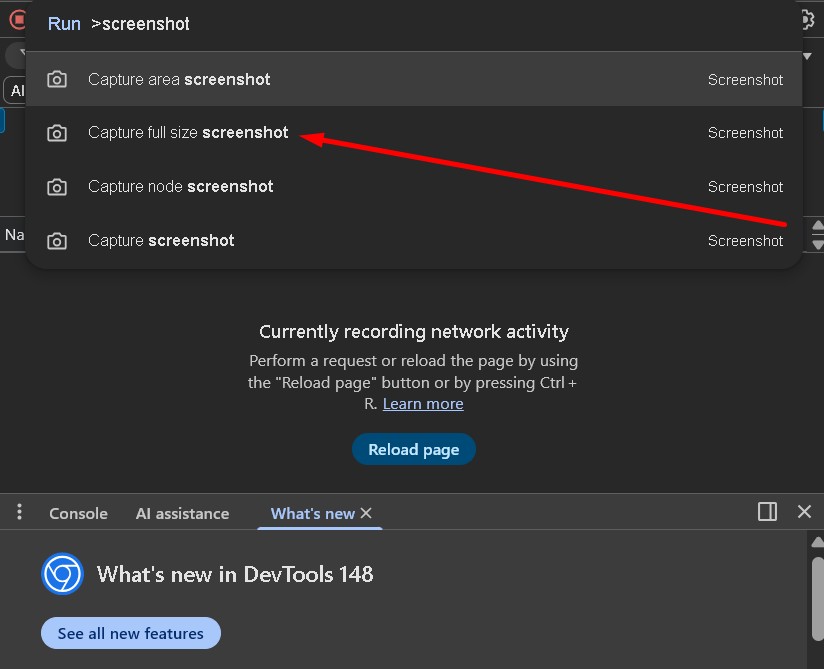
As soon as you complete this process, the captured screenshot will be saved directly to your computer’s Downloads folder, where you can view it at any time. Keep in mind that the screenshot will be saved in PNG format, ensuring excellent image quality.
How to Take a Full-Page Screenshot Using Extensions
If you prefer, you can also capture a full-page screenshot in Google Chrome using Chrome Extensions. To do this, you will need to install the GoFullPage extension in your Chrome browser by following these steps:
Step 1. Open the Google Chrome application on your computer or laptop and search for GoFullPage. Click on the official link for GoFullPage – Full Page Screen Capture – Chrome Web Store.
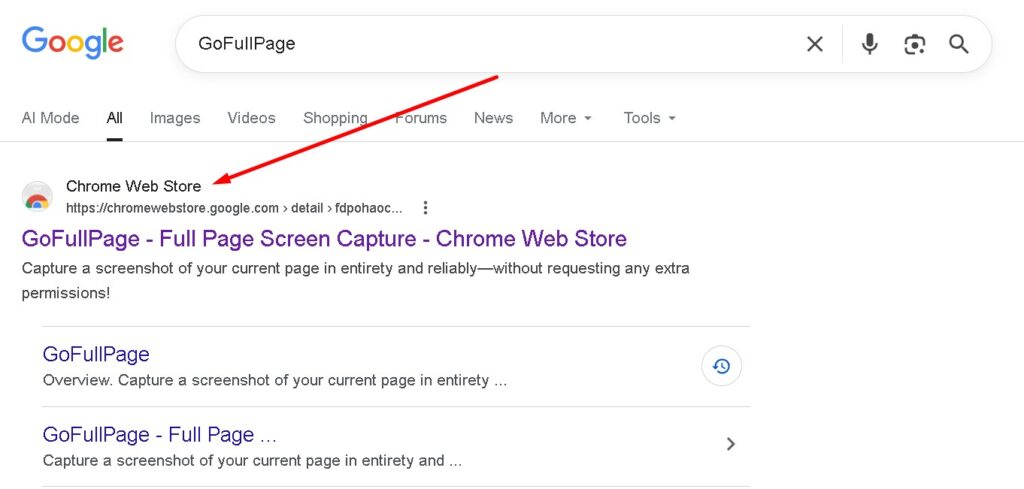
Step 2. Once the GoFullPage page opens, click on the Add to Chrome button. A confirmation pop-up will appear; click Add extension to proceed.
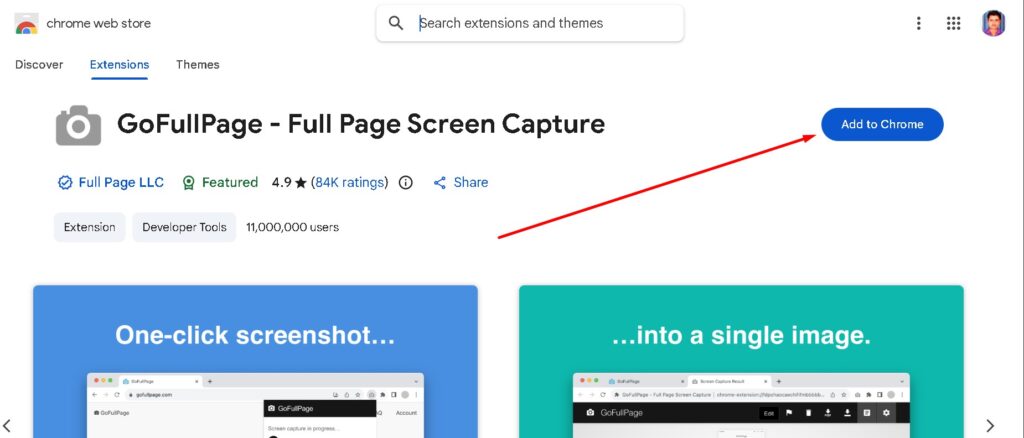
Once you complete this process, the GoFullPage extension will be installed on your PC. To use it, simply navigate to the webpage you want to capture and click on the camera icon for the GoFullPage extension. The extension will automatically scroll and capture the entire page for you.
Q1: Can I take a full-page screenshot in Google Chrome without installing any external software or extensions?
A: Yes, Google Chrome has built-in Developer Tools that allow you to capture a full-page screenshot directly without requiring any third-party applications or extensions.
Q2: How do I open the Developer Tools panel in Google Chrome?
A: You can open the side panel for Developer Tools by pressing either the F12 key or the Ctrl + Shift + I shortcut on your keyboard.
Q3: What shortcut command opens the search box within Chrome’s Developer Tools?
A: Once the Developer Tools panel is open, you can press Ctrl + Shift + P to bring up the command menu and search box.
Q4: In what file format are full-page screenshots saved when using Chrome’s Native Developer Tools?
A: The screenshots captured using the built-in Developer Tools are saved in PNG format to ensure high image quality.
Q5: Where do the screenshots get saved on my computer after capturing them through Developer Tools?
A: The captured full-page screenshots are automatically saved directly into your computer’s Downloads folder.
Q6: What extension can I use if I prefer a one-click method to capture entire webpages in Chrome?
A: You can use the GoFullPage – Full Page Screen Capture extension, which is available in the Chrome Web Store.
Q7: How does the GoFullPage extension capture an entire webpage?
A: Once installed, you simply click the extension’s camera icon on the webpage you want to save. The tool will automatically scroll down and capture the entire page for you.